Showing posts with label multimedia. Show all posts

Sunday, November 7, 2010

Beyond Duct Tape - Web 2.0 Presentation and Multimedia Tools


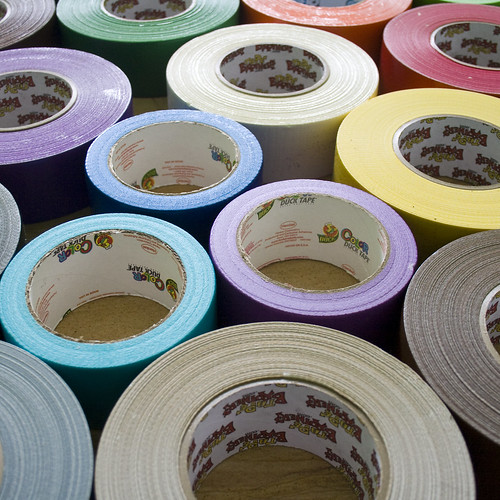
duck tape party supplies 2 - all you can eat
woodleywonderworks' photosteam via flickr
Duct tape is an amazing piece of technology.  It is the one universal tool that is effective and doesn’t take a lot of knowledge to use.  However, it does take an open mind and a little imagination.  I remember watching a show about how a guy camping in the remote wilderness had fallen and gashed his knee on the terrain.  He used duct tape to temporarily treat the wound that actually required stitches (I automatically imagined the removal of the duct tape – I’m cringing at the image).

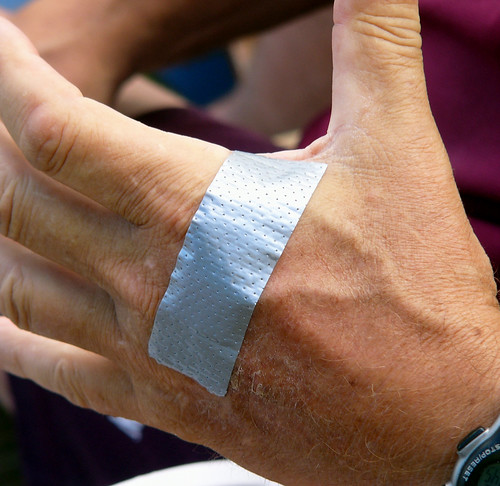
Duct Tape Bandage
ktylerconk's photostream via flickr


I also think of the vehicles I have seen driving down the road with duct tape covering a broken window, or holding a bumper on.  I’m sure it doesn’t meet the automobile safety standards, but the duct tape does the job.
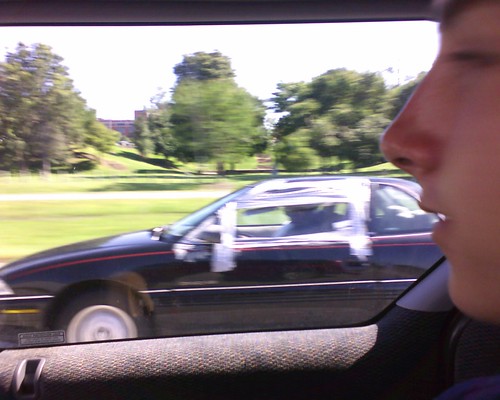
09-09-05_1516
vasto's photosteam via flickr


Once, when I was working at an assembly line job, an electrical fire broke out near my station.  The mechanic came racing down to attend to the issue.  He was searching for the tool necessary to fix the issue.  I asked him why he didn’t have duct tape with him – I was under the impression any mechanic worth a lick would have that in his tool box.  He just laughed...and pulled some out.

"You will pay hundreds of dollars for some duct tape."
DaveFayram's photostream via flickr
 So, that leads me to presentation tools and multimedia tools for Web 2.0 – just give me the duct tape!  I can do wonders with it.  I have seen its value and know its versatility.  I have clapped as principals were taped to gymnasium walls with duct tape(presentation for a charity fundraiser), Halloween costumes (did you know the Tin Man from the Wizard of Oz is the same tone of grey as duct tape?), science board presentations taped for added stability, and numerous other presentation variations of its use.  And it is simple – cut off a piece and stick it on until you get the results you wanted.
Initially, this was not the case for Web 2.0 presentation and multimedia tools for me.  I was stressed about the Web 2.0 adventure.  It seems like the more I learn, the less I know.  It takes time to learn all these tools.  Sometimes things go smoothly, and often (for me) they don’t.  It is always easy in hindsight, but I am a stress eater and right now, my hind is a sight!
Chris' foot (duct-tape provided by Jonny)
mattbuck4950's photosteam via flickr
I did take a couple days off to collect myself, to refocus enough to get me through the next few posts.  This is hard, because I feel like I have already failed.  I feel like what I discover about presentation tools will never be enough, even though I know “enough” is never achievable in the Web 2.0 world.  It is an endless cycle of catch up and fall behind.  I am duct taping my wounds so I can finish the journey.  At this rate, I could end up resembling a Web 2.0 mummy.
My journey began with what I knew about Web 2.0 presentation and multimedia tools: very little beyond PowerPoint.  I have seen a Prezi.  I have attempted one Glogster, but I’m sure I didn’t do it properly and was left with a very basic poster.  I have heard of Google Earth, but unfortunately the professional development I am registered for doesn’t start until November 17th. 
When I looked at the list of what I needed to look at for this next post, I was overwhelmed.  Here is what is suggested;
·         Animoto
·         VoiceThread
·         Prezi
·         Google Earth
·         Vuvox
·         Jing
·         Glogster
·         Zoho
·         Openzine
·         Toondo
·         Mindmeister
·         Flipbook
·         Bitstrips
·         Comic Creator
·         Xtranormal
·         Slideshare
·         Digital Mapping

I explored Animoto, VoiceThrea, Prezi and Google Earth a little more thoroughly, so the information regarding these tools are in separate posts.  However, I dabbled briefly in a few others and some examples of my efforts are below.

Xtranormal:  I played with Xtranormal briefly last night.  It is very cool.  I just wish I could get this lady to rap like some of the showcased productions.  Kids would love working with dialogue using this tool.  I could share the presentation in a number of ways, but I chose to publish it to YouTube.  I can't wait to show my own kids, because I think this may be one of the things they want to play with online.  As a note, there did seem to be some settings I wasn't sure about - maybe not "G" rated - something I would have to dig into further before I gave the go-ahead to students and my children.


Vuvox: I have played with this a little.  Finally got the music to load.  I will have to play with it more to get it to my liking, but here is my first attempt.

http://www.vuvox.com/presentations/0311247f65

I also came across a few other suggestions in the Edutopia's Back to School Guide:  Jump Start Learning with New Media, which you can download for free from http://www.edutopia.org/back-to-school-classroom-resource-guide
It contains great suggestions for setting up your digital classroom.  I explored a number of them and have included a few quick examples, and a quick overview of a few of them here.  These are a few of the more interesting presentation and multimedia tools:


Invitation Template:

Hi Guys n Gals
I have created a Wallwisher wall. It is a simple webpage where we all can post our messages easily.
So simply go to http://www.wallwisher.com/wall/kscheidy and post your message there.
Happy Posting!
kscheidy

This is such a neat tool.  I can add sticky notes in the form of audio, text or an image.  If you go to the wishwall I created you can already see links I have found for using the wishwall, links other people provided to Web 2.0 tools and manuals.  As indicated above, I can invite people to my wishwall and they can add to it.  I have the ability to moderate each post before it is posted to the wishwall.  I think this is a great organizational tool for personal and professional use.  Further, it is a great collaborative tool.
AnswerGarden is very simple tool to use for collaborative brainstorming.  It is a tool that can be used to determine what students already know before proceeding with a lesson.  It is a tool I can use on my blog to question people as they visit my site.  I created one and added it to my blog on the sidebar.  Try it out so I can see how it works!  Users can also have all the responses compiled into a Wordle, which is another favorite tool of mine.

Another tool similar to wordle is Tagxedo.  Check out the site 101 Ways to Use Tagxedo by Hardy Leung for an indepth look at the versatility of this tool.  This is a Tagxedo made from my blog - I simply inserted my URL address, chose the layout and font, and the result was this:


Another tool which is so fun and students would love when creating diagrams for presenting materials is SimpleDiagrams.  This video, How I'm Using "Simple Diagrams" with Coaching Clients by mavenaire demonstrates the ease of use and the effectiveness of this tool for communicating ideas.


This is an example of a SimpleDiagram I created:


Also worth checking out is Museum Box.  With this site you can create your own artifacts museum to display items.  You can include various forms of media in the boxes.  These boxes allow to you put artifacts or items to create various perspectives of an issue, event, person, or any other topic you wanted to create a case for. 

Of course, I only needed to explore several of these, not all of them.  I used duct tape to hold my eyes open as I pulled more all-nighters in my attempt to learn to navigate the rugged wilderness of the Web 2.0 presentation and multimedia tools.  The exploration posts for this week are titled:
  • A Gentle Stream – Animoto
  • A Beautiful Sunrise - PowerPoint or Prezi, What's the Difference? - Prezi
  • A Breath of Fresh Wilderness Air - VoiceThread
  • Get Me Out of Here - Google Earth
I also included brief posts on various other tools I played with:
  • Xtranormal
Learning about the tools definitely had its stumbling blocks.  For the most part, however, I was able to set up my accounts, upload files for the presentations, and create a basic product.  As I played with each tool more, I learned tricks and tips which improved the final product or simplified the process.  The one tool I struggled the most with was Google Earth, but that was more due to my Internet speed than the tool itself.  Quite honestly, all said and done, Google Earth was the most versatile tool with endless possible uses.

These tools are definitely fun when everything is working well.  I know my kids will enjoy playing with these tools at home - as an online toy and for entertainment.  However, as a parent and a teacher, I see benefits in these tools which are limited to neither school nor home.  I am better preparing my children for the Web 2.0 world if I am introducing them to these tools for personal and professional use (professional in their case is school).   

Cheryl Lemke, president and CEO of Metiri Group (consulting firm advocating for the advanced use of technology in schools), writes about the implications for education due to the way we learn (new research is available due to new functional magnetic resonance imaging (fMRI).  A very simplified summary of her research is that our working memory processes visuals differently than text and sound, similar to two different channels.  Additionally, our working memory has very limited capacity for both.  This affects the way educators teach on many levels.  Lemke cites work by Mayer & Moreno (2003) which indicates that "people learn better from combining visuals with text and sound than through using either process alone, provided the design of learning resources follows certain multimedia principles" (Bellanca & Brandt, p. 248).  Lemke then introduces the seven principles related to multimedia and modality:

This set of seven principles related to multimedia and modality is based on the work of Richard Mayer, Roxanne Moreno, and other prominent researchers (Chan &Black, 2006; Ginns, 2005; Mayer, 2001; Mayer & Morena, 2003).
1. Multimedia Principle:  Student retention is improved through a combination of words (verbal or text) and visuals, rather than through words alone, provided it doesn't introduce redundancy of content.
2. Spatial Contiguity Principle:  Students learn better when corresponding text and visuals are physically integrated rather than separated.
3. Temporal Contiguity Principle:  Students learn better when corresponding text and visuals are temporally synchronized rather than separated in time.
4. Split-Attention Principle:  Students learn better when extraneous words, pictures, and sounds are excluded rather than included.
5. Modality Principle:  Students learn better when text is presented auditorily as speech rather than as on-screen text.
6. Individual Differences Principle:  Design effects from these principles are higher for low-knowledge learners than for high-knowledge learners, and they are higher for high-spatial learners than for low-spatial learners.
7. Direct Manipulation Principle:  As the complexity of the materials increases the impact of direct manipulation of the learning materials (animation, pacing) on transfer also increases.
Students engaged in learning that incorporates high-quality multimodal designs outperform, on average, students who learn using traditional approaches with single modes.  This was borne out by a recent meta-analysis that revealed multimodality (the use of text or sound and visuals together) can positively shift achievement - provided the multimedia principles are followed. (Bellanca & Brandt, pp. 248-249)
Lemke further states that the meta-analysis also indicated that non-interactive multimodal presentations resulted in a 21 percentile increase for those originally performing at the 50th percentile, and interactive presentations resulted in a 32 percentile increase.  (Bellanca & Brandt, p. 249)

These are interesting findings.  The principles are very similar to the requirements Bernajean Porter has for her Digital Storytelling - Digitales workshop.  But on a larger note, does it really matter?  Because, Lemke states, the Internet is here to stay - it is a place for recreation, communicating and leaning (Bellanca & Brandt, p. 243).  Therefore, presentation and multimedia tools will be sticking around - without the duct tape!

Resources

21st century skills: Rethinking how students learnBloomington, IN: Solution Tree.
Bellanca, J., & Brandt, R. (2010).

Saturday, October 16, 2010

Wiki With Me - Quick and Easy Collaboration

What is a Wiki?

Wikis are really a simple tool to understand and use.  In a nutshell, they are an online site where any member of the wiki can add information, edit pages, and communicate with others, to extents determined by the wiki security settings.  It is a site for collaboration.  There are numerous tutorial and educational videos available to walk a person through defining it, using it and setting one up.  Honestly, the first wiki I ever set up I did without any assistance - it was that easy.  However, I recommend watching Wikis in Plain English - it is a great visual explanation of how a wiki works and the collaborative nature of the tool. 

TeacherTube Videos - What is a PBwiki? also provides some details as to what a wiki is and how it can be used.

The last tutorial which gives a great step-by-step instruction on using Wikispaces is this slideshare tutorial.

I know there are numerous wiki providers available, but I was already using Wikispaces and chose to explore this platform further.  Wikispaces has some quick and easy to follow tutorials to help you get set up and running with Wikispaces very quickly.  I hadn't watched these before.  Even though I had been using Wikispaces for a couple of months now, I learned about new tools and possibilities from these tutorials.  It was enough to help me take my wiki creation to the next level.

The first exciting discovery I made was under "Manage Wiki" on the sidebar of my Wikispaces.  I explored the tools to manage my wiki and found a very easy way to import a post from my Web2pt0Me blog into my wiki.  There is also a feature under widgits, which we will look at next, which allows you to add RSS feeds to your wiki as well.  This is a great way to compile information from a variety sources into one site.  Unfortunately, I was not able to get the feed to update automatically, so I would have to play around with that more to see if it can be done.


Under "Edit This Page" I had already figured out how to embed pictures, insert tables, upload files and create internal/external links.  However, I had not yet explored the widgets.  There are some very practical and enhancing tools which can be added to the wiki to increase it's value as a collaborative platform. 

First, let's look at the Wikispaces widgets:


I wanted to explore all these widgets to understand what they did and how they would enhance the functionality of the wiki.  And so my exploration began.

As mentioned above, I inserted an RSS feed into my wiki.  I used my Web2pt0Me URL for this.  The result was a list of all postings to date on my blog.  I could set the number of posts I wanted to appear, up to a maximum of fifteen.  I couldn't get new posts to appear, so it seems one would have to manually return to the site to look for any new posts.  Again, this is something I will have to look further into.


I then played with adding a calendar to my wiki.  There are a few choices of which calendar platform to add, however I went with Google Calendar because it is one that I have wanted to look into further.  I did get sidetracked from my wiki exploration when I entered the world of Google Calendar because there are so many interesting features and options available.  I did refocus myself and explored its function within a wiki.  I was able to embed my Google Calendar within the wiki page with great ease.  The steps are clearly explained and the template is extremely user friendly for embedding the html text.  Once embedded, I played with the size and location of the calendar on my wiki page, and saved it.  Any changes I make to my Google Calendar are updated automatically on the wiki.  I did not like the fact that a personal email address appeared on the top of the calendar, and will look further into how to address this issue.


Next stop for me was to look at the "Notify Me" page on the wiki tabs.  This feature allows a wiki member to subscribe to the feeds for new posts and/or comments.  This feature allows those interested in the site to be notified when new posts or comments are made, either through a RSS reader or email.  The benefit to this is members don't have to continually check the site for changes, the changes will come to them.


I easily embedded YouTube video to the site, which is a feature I like.  In a collaborative sense, videos which support the focus of the wiki can also easily be included either through embedding or linking.

The "History" page was also useful to look at.  It is a tool to follow the contributions of members to the wiki site, noting their changes and dates/times of contributions.  You simply chose the histories you want to compare, and the additions and deletions to the page are highlighted in green and red respectively.  When you review changes, you are taken to the changes that occured and in the order they occured in.


One last widget which is worth noting, especially as we want to teach our students to cite and reference sources, is the References widget.  This was extremely easy to add, and once the reference was added, I was able to cite the source within my wiki page. 


Okay, so that was the exploration I had time for right now.  There are other widgets and wiki managing tools I looked at, and they either seemed very straight forward or worthy of further investigation at a later time.  For now, I had many new tools to ponder in relation to personal and professional use.  It was enough; I was excited to start playing with these tools.

My Life - Wikified

As I was exploring the wiki tutorials, videos, and various other wiki resources, I kept thinking of how I could use this tool to help organize my ladies' ringette team.  Because wikis are so easy to set up, I created one specifically for the team.  I decided which widgets would make the site effective, efficient and user-friendly.  Currently my team members and I organize our game attendance and carpooling through email.  It is not always the most efficient because not everyone replies-all to the most current email, or early responders are forgotten by the time the last responses trickle in.  The wiki seems like a great alternative for our team.  The only down side I can see at this point is the ease of email response (which is often from our cell phones) verses having to access the wiki to respond. 

I included my Google Calendar.  I can input the game dates on my calendar and they appear on the wiki calendar.  Very useful.  I included a table for those who will attend the next game and those who won't (to encourage everyone to respond one way or the other).  I included a separate page for the team roster and contact information.  I also included a dialogue box so we could discuss carpooling arrangements (a favorite part of the weekly games).  In the end, I had a wiki for our team - I just need to ask everyone to join.  Once they do, they will be able to upload team pictures, tournament information, and other details that we discuss either in the change room or through email.


I would love if each of my kids' sports teams had a wiki set up.  I am not talking about the organization's website; I am talking about a wiki specific to my child's team.  It would make it so easy for me as a parent to organize our busy lives.  The ability to collaborate with other parents in organizing team fundraisers, tournaments, carpooling, sportswear, and the many other facets of the team would be so manageable.  The history would be there for quick reference, rather than searching numerous emails.

I can also picture using a wiki as a place to organize camping trips with friends and extended family, or any other event for that matter.  It would also be a great place to create a family tree, or a family sharing site (since my family extends across Canada and the United States).  For my family members who are leary of the public domain, we could even upgrade the account to include more private settings. 

I think the possibilities become endless once you begin to think of the many collaborative events we participate in on a regular basis.  Essentially, if it is collaborative, a wiki could be a good tool to use.

Wiki As A Professional Tool
My first experience with a wiki for a classroom project sold me on the use of wikis in the classroom.  I created a full blown inquiry project which housed all the lesson materials, resources, links, assessment and provided a great visual support for students, parents and teachers alike.  This has been an extremely easy lesson to share - I simply give someone the URL address, and they have everything they need.  I don't have to look up things saved on my computer, pull papers from a filing cabinet, or anything else - the wiki is my filing cabinet for the lesson. 


I am also proud to say I introduced our AISI coordinator to the wiki for a place where AISI leaders could collaborate on the critical thinking work we are doing as a district.  It is a great tool to link Professional Learning Communities (PLCs) which are separated by either distance or time constraints.  Further, it allows for easy transfer and sharing of materials, resources, links and any other relevant information. 
It is worthwhile to mention a few benefits available to educators through Wikispaces.  Firstly, educators can upgrade any K-12 educational wiki to a Plus account, which comes with additional features and data capacities.  However, for a $200/year fee, a Wikispaces account can be upgraded to Super, with even more file storage capacity.  As a collaborative tool for an organization, this is much more economical than providing release time for teachers to collaborate and share materials.  Further, if an organization wanted a completely private domain, the could upgrade to a Private Label.  This would be beneficial for organizations with tighter internet policies.

I had also used a wiki to create a pathfinder.  I am already considering how I will use a wiki to set up book clubs and literature circles for my language arts classes.  With the push for 21st century skills, particularly collaboration, web 2.0 tools such as wikis become an essential part of the classroom.
While I have touched on only a few of the possibilities for wikis, WebTools4u2use provides a comprehensive list of professional uses for wikis.  Also included are the necessary assessment rubrics when using wikis in the classroom.  It is an amazing site to explore.

Wikis can also be used in presentations and to support presentations, as shown in the NECC Librarians 2008 conference.
I think the list for the uses of wikis is endless, as the opportunities for collaboration continue to present themselves to me on a daily basis.  I just did a presentation this weekend with two other collegues.  In hindsight, because we came together from different locations, the wiki would have been a great place to collaborate. 

Although I did not explore all the widgets, I did get to look at the ones that are key to me right now.  I am excited there is still more to learn because working with the wiki has been fun.  Again, an awareness of the tool and its possible uses is key.  With that, you are well prepared to wiki at will!